


Locate your site. See To locate a new site for information.
1.Click the Reports toolbar  .
.
2.The Report ordering steps will be displayed:
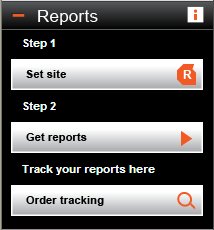
3.Click the Set site button  .
.
4.Define the area to be exported by drawing a shape around the required area.
Click a point on the map where you want to start drawing around the area. If you've chosen a particular map feature, such as a building, click slightly away from the boundary line. Move the mouse cursor to the next point and click once more.
Repeat step b) for each point of the shape until the whole of the shape has been drawn except for the last line.
If you make a mistake and want to move back a step, press Backspace on your keyboard. The last segment drawn will be deleted.
Finish the shape by clicking on the first point of the shape.
Note In order for a shape to be used as the historical maps area, please make sure that it does not cross-over itself. |
Once you have finished drawing your shape, Promap will automatically put a reports map frame around the shape you have drawn. You are now ready to order your report.